Log a bowel movement
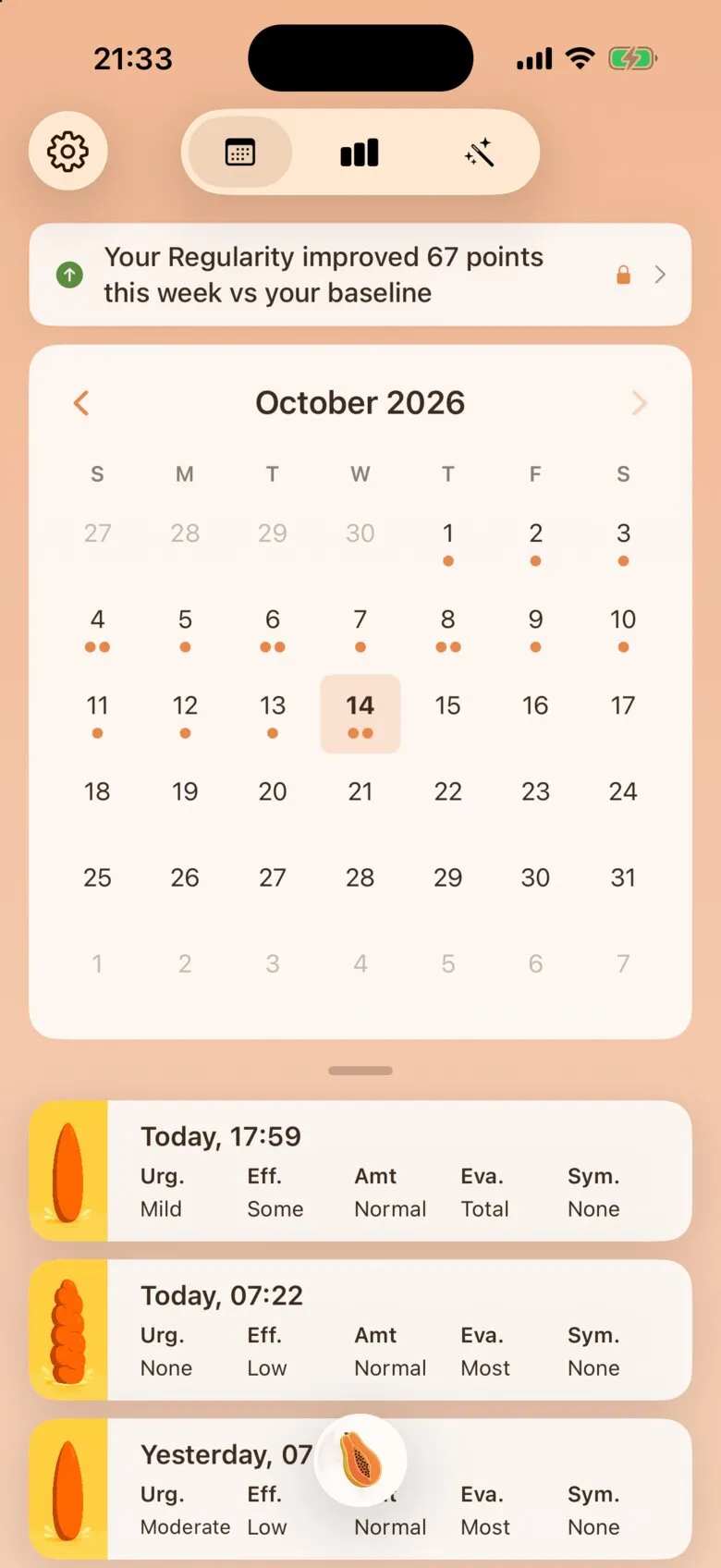
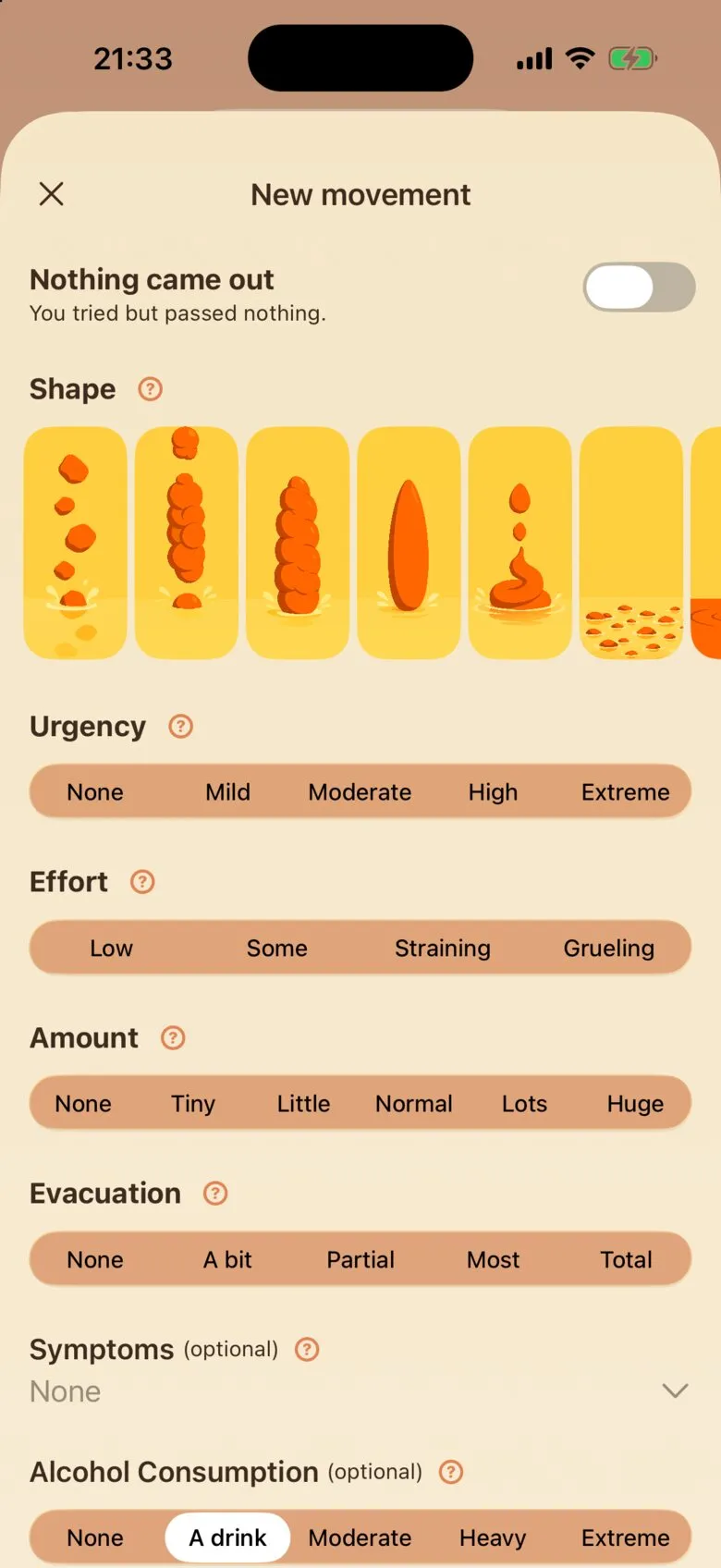
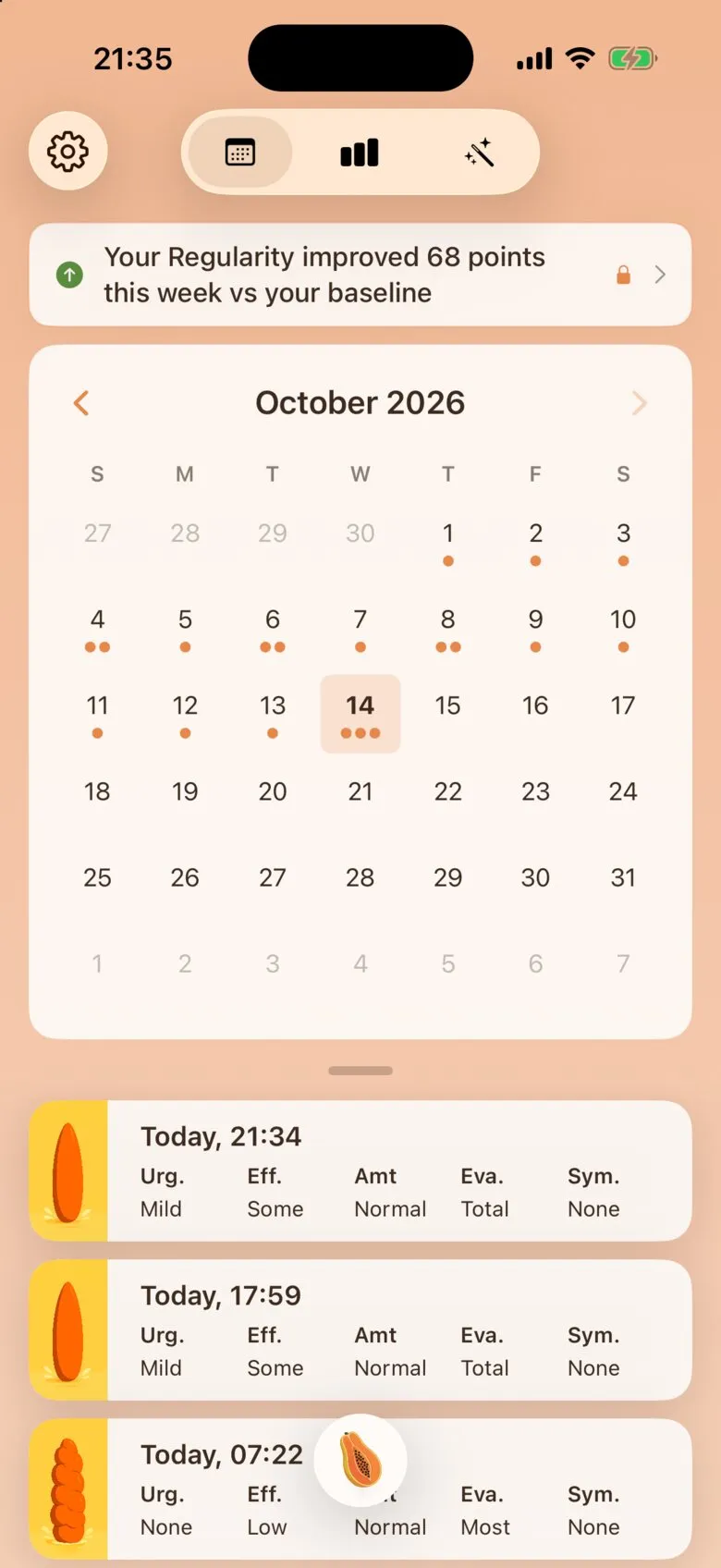
- Tap the papaya button.
- Pick the shape that matches.
- Set Urgency, Effort, Amount and Evacuation.
- Add any optional details, then scroll down.
- Tap Save.
- Your movement shows up at the top of History.
Step 1: Tap the papaya button
The round papaya button  sits at the bottom of every screen. Tapping it opens the New movement form. The form logs the movement at the current time, so it’s best to log right after you go, but you can adjust the time and date on any movement you log.
Step 2: Pick a Shape
The seven pictures under Shape are the Bristol Stool Scale, from type 1 on the left (Hard pellets) to type 7 on the right (Liquid). Tap the one that looks closest. Swipe the row to see type 7.
If you’re not sure, tap the ? next to Shape for a short explainer on each type, or read the Bristol Stool Scale, explained. Types 1 and 2 are the constipated end of the scale. If you tried to go and nothing came out, see When nothing came out.
Step 3: Set Urgency, Effort, Amount and Evacuation
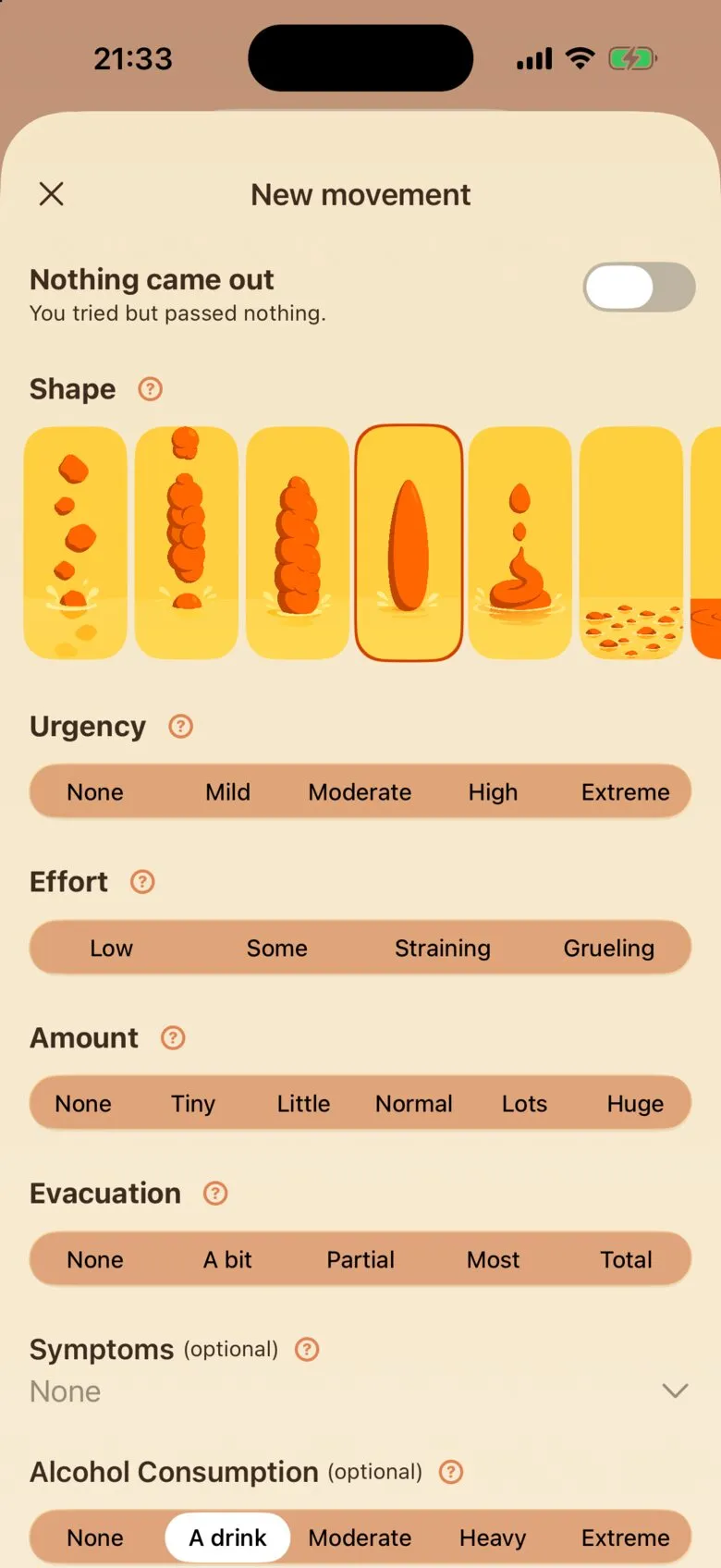
These four rows plus Shape are the only required fields. Pick one option on each:
- Urgency: how badly you needed to go.
- Effort: how hard you had to push.
- Amount: roughly how much came out.
- Evacuation: how empty you feel afterwards.
Each one has a ? button that explains the options in plain words.
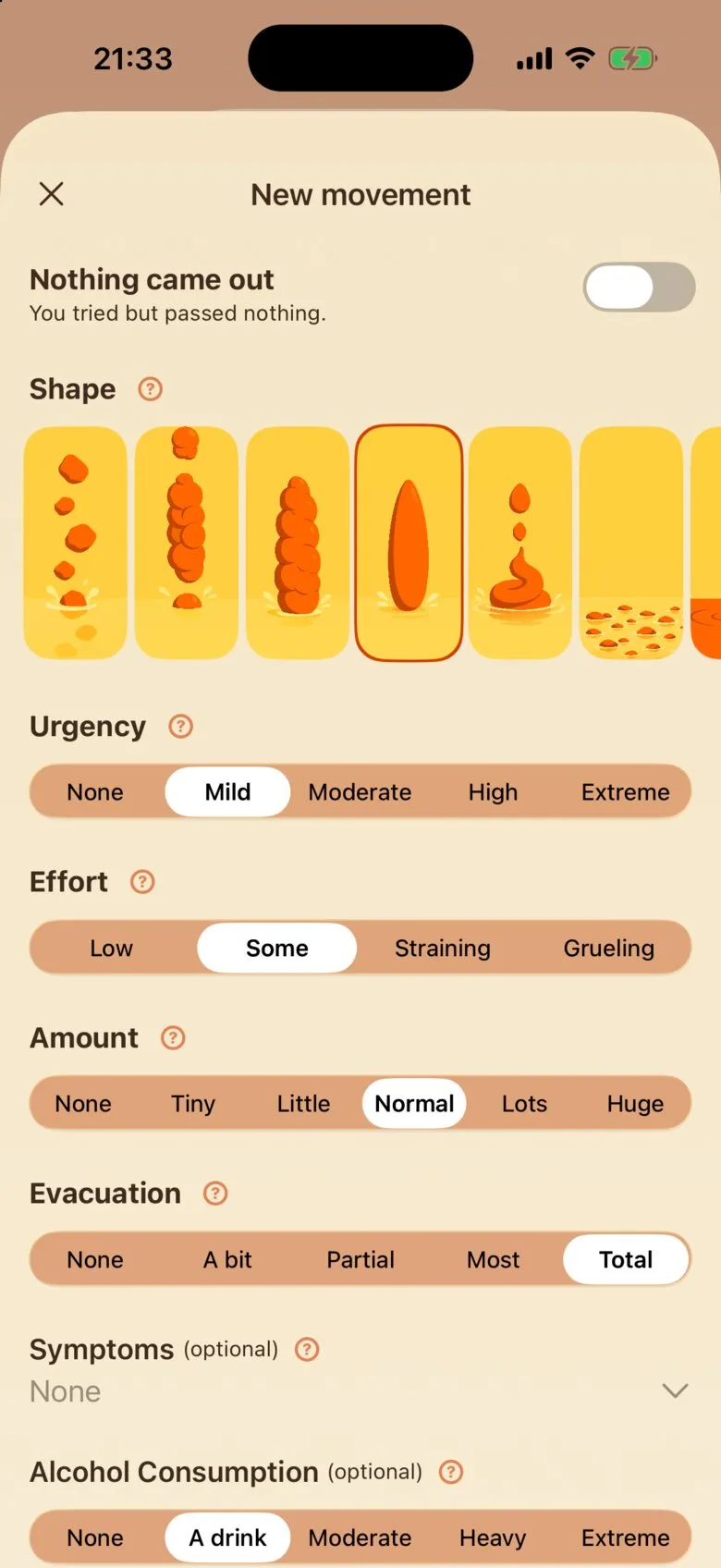
Step 4: Add the optional details you care about
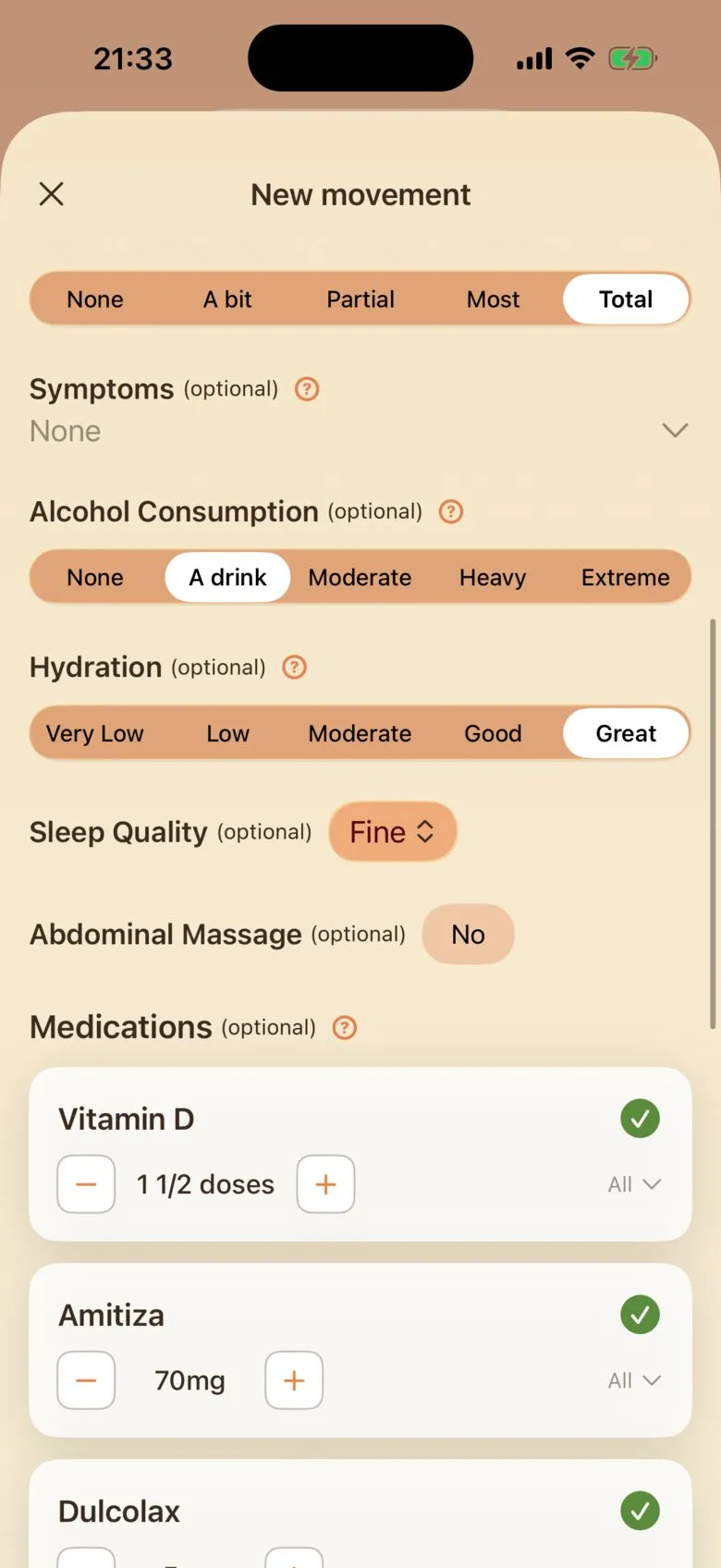
After the required rows, everything else is optional: Symptoms, Alcohol Consumption, Hydration, Sleep Quality, Abdominal Massage, Medications, Diet and Notes.
You don’t need any of them for a log to count. Anything you do add feeds your charts and the app’s other smart features, so the more you record, the more Poopaya can do.
If you’ve already logged earlier today, Poopaya copies Symptoms, Alcohol Consumption, Hydration, Sleep Quality, Medications and Diet over from that log, since those usually stay the same through the day. Update any that have changed.
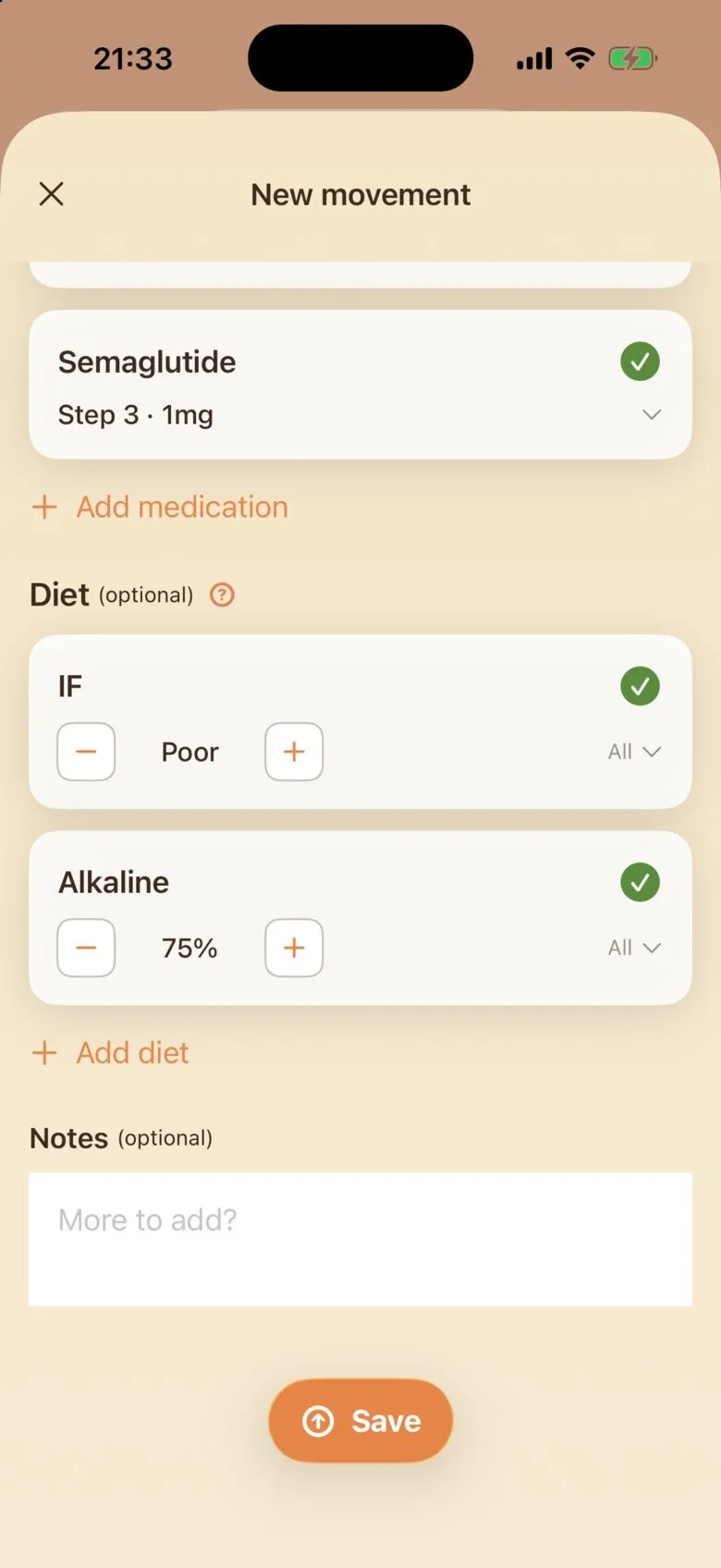
Step 5: Tap Save
Scroll to the bottom of the form and tap Save. The form closes, a “Movement recorded!” message pops up (or a milestone, if you just hit one), and the new entry sits at the top of your History list.
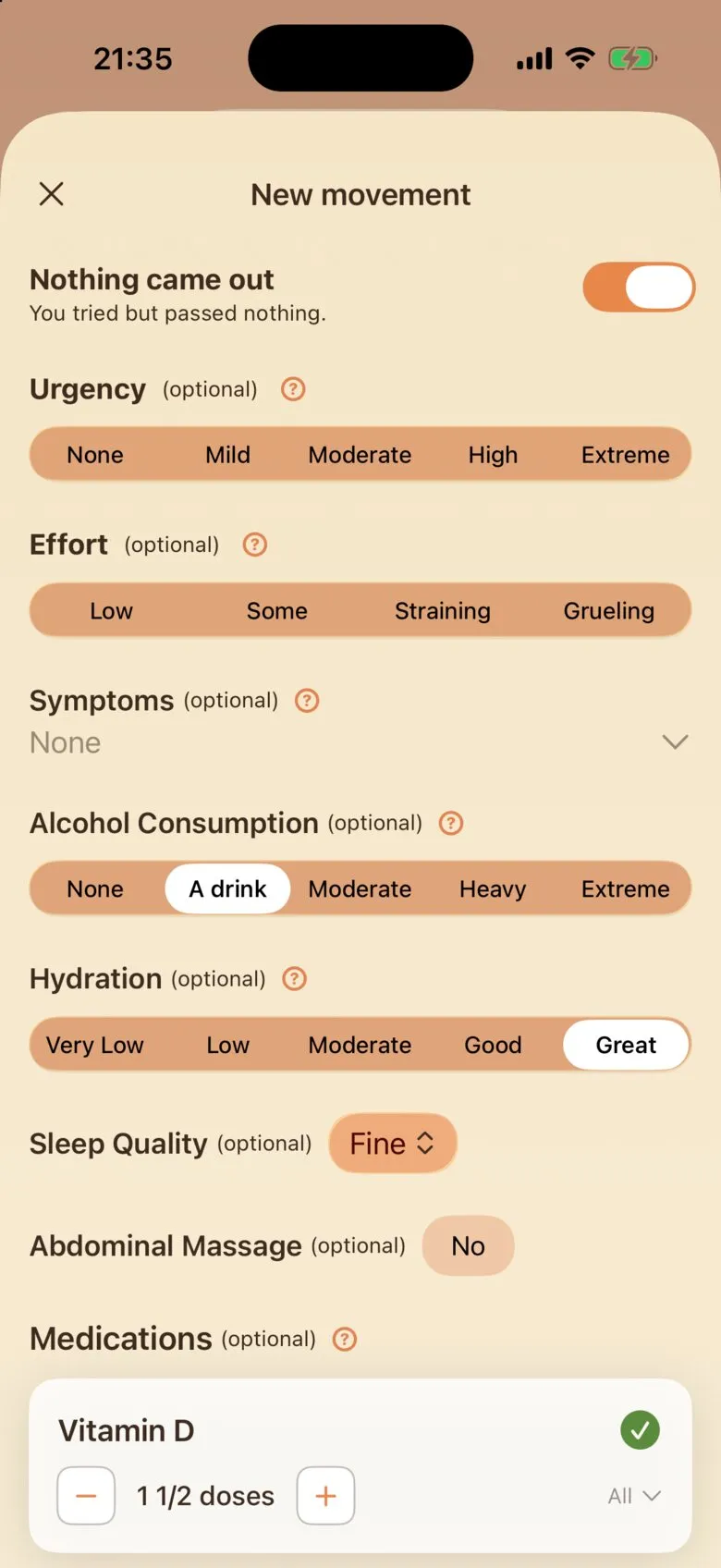
When nothing came out
Turn on Nothing came out at the top of the form. Shape, Amount and Evacuation disappear, because there’s nothing to describe, and Urgency and Effort become optional. Tap Save and it’s recorded as an attempt.
Failed attempts are worth logging. A run of them is good to know about, for you and for a doctor if you end up seeing one. The other fields are optional, but symptoms, sleep and the rest are still useful to fill in on those days. Log as much or as little as you like.
Logging something from earlier
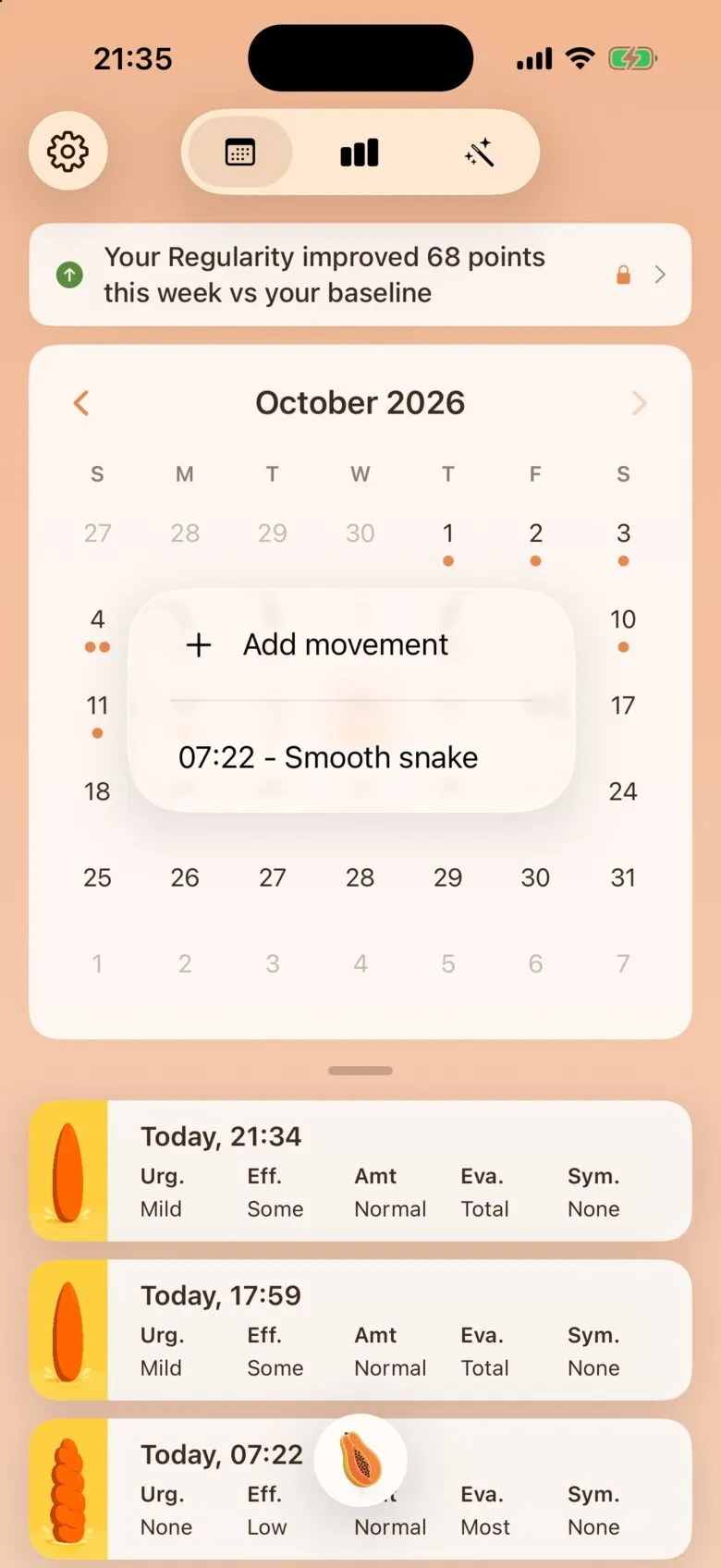
By default a New movement is logged at the current time. To add a movement for another day, press and hold that day in the History calendar and tap Add movement. The form then has a Date & Time row at the top that you can change. If you missed yesterday and it broke a streak, Poopaya will ask if you “Forgot to log yesterday?”, which does the same thing, so you don’t lose your streak.
If something doesn’t look right
- Save is greyed out. One of the five required rows is still empty. Scroll back up and check Shape, Urgency, Effort, Amount and Evacuation. (If you meant to log an attempt, turn on Nothing came out instead.)
- You picked the wrong option. Tap the entry in History, then tap Edit. You can change anything, including the time. Delete is on the same screen.
- The form shows details you didn’t enter. They were copied from your earlier log today (see step 4). Change or clear them before saving.
Logging is free, with no limit. Poopaya Gold adds Charts and Insights on top of what you log.
Poopaya is a tracking tool. It records what you tell it and doesn’t diagnose anything. If something in your logs worries you, take them to a doctor.